- Start
- Websites & Systems
- Documents, Company Login Credentials
- Internal Company Software
- Departmental Processes
- Development Process Flow
- Mobile Marketing
- General website information
Copyright © Nick Wilson 2026. Vetro Media. All rights reserved
I've built this handover to assist you with day to day basic outputs as well as departmental process flow, what the internal teams protocol are, and links to documents & company licencesed software login credentials etc. Please read through and bookmark the link so that you can reference at any point should you be stuck.
*** Please note that this handover is not responsive and is not intended for mobile use at all. For Desktop use only. ***
These are websites hosted on Elite - some are maintenance clients too whereas others occasionally have Adhoc requests
We provide ongoing monthly maintenance for a number of clients, all of which are managed centrally through WP Manager (Orion). Access will be provided. If you haven’t used it before, it’s a practical tool that acts as a single dashboard for logging into multiple WordPress sites, monitoring uptime/downtime, and organising sites by assigning colour tags to specific developers. This makes it easy to see ownership at a glance and keep maintenance responsibilities clearly structured across the team.
While WP Manager is useful for visibility and access, its built-in backup functionality is unreliable and should not be used. Instead, the team follows a consistent backup process using Duplicator / Duplicator Pro, and in certain cases All-in-One WP Migration (Plus). These tools provide far more dependable backups and restore points, which is critical for maintaining site integrity and ensuring quick recovery if any issues arise.
Overall, the goal is to maintain a clean, organised, and reliable maintenance workflow—using WP Manager for oversight and access control, and trusted third-party tools for backups and site safety.


While every client we work with is valued and their requests are treated with care and urgency, there are a select few accounts that require an elevated level of priority. These clients typically have more complex requirements, higher traffic volumes, tighter turnaround expectations, or a greater impact on the business as a whole. As a result, any briefs, tasks, or issues relating to these accounts should be actioned as a matter of priority and handled with an increased sense of urgency and attention to detail.
This distinction isn’t intended to diminish the importance of any other client work—our standard approach is always to respond promptly and deliver efficiently across the board. Rather, it ensures that where timing, visibility, or business impact is more critical, we are aligned as a team in recognising those needs and responding accordingly.
These websites all belong to the same client - their business needs are critical as they are predominantly a logistics company, with that being said, their subsidiaries are to be treated as priority as well:
Environ is one of the largest and most strategically important accounts for Vetro Media. We are responsible for multiple critical workstreams, including their loyalty programme, performance marketing, and website management. Given the scale of the account and the level of dependency across these areas, all incoming briefs, requests, and issues should be treated with a high level of priority and responsiveness. This is especially important as the client has experienced several setbacks during production, which has increased the need for speed, accuracy, and proactive communication on our side.
It’s also important to be aware that Environ’s internal Brand team holds final sign-off on many deliverables. As a result, briefs can sometimes shift significantly—occasionally even late in the process. You’ll need to keep a close eye on this and manage it carefully. Where changes fall outside of the original scope or risk impacting agreed timelines and budgets, it’s essential to push back constructively. The goal is to maintain alignment while protecting delivery standards, ensuring we don’t overextend resources or compromise on quality due to last-minute changes.
VAT IT is another key account for Vetro Media, with multiple active workstreams spanning performance marketing, SEO, and website development. Similar to Environ, this is a high-impact client where delivery quality and responsiveness are critical.
The account has faced a number of challenges during production, particularly around inconsistencies in the server environment and site performance. These issues have understandably led to growing client frustration. As a result, the account is currently in a recovery phase, and our approach needs to reflect that.
All work related to VAT IT should be treated as business-critical, with the same level of focus and urgency you would expect in a high-pressure “ICU” scenario. This means prioritising stability, clear communication, and fast turnaround times, while being proactive in identifying and resolving issues before they escalate. It’s equally important to ensure consistency in delivery and to rebuild trust through reliability, transparency, and measurable improvements in performance.

Hot FM is a particularly sensitive client and requires a high level of care, coordination, and urgency in all aspects of delivery. As a live radio station, much of their digital ecosystem operates in real time and is closely tied to what’s being broadcast nationally. This means that content updates, competitions, and blog posts are often extremely time-sensitive, with little room for delay or error. Responsiveness and reliability are therefore critical when working on this account.
The brand has also experienced a series of disruptions and technical challenges. This began with a takedown notice issued to their previous hosting provider, Elite Hosting, due to content conflicts involving Katy Perry. Since then, the site has been migrated across two different hosting environments, each presenting its own set of issues and inconsistencies. On the current hosting setup with Domains, there are still notable limitations—most significantly, WP Rocket cannot be used as it causes the site to crash. The hosting provider has recommended LiteSpeed Cache as an alternative; however, it has proven to be less effective in delivering meaningful performance improvements. As a result, optimisation efforts require a more tailored and cautious approach.
In addition to the main Hot FM site, there is also Hot Cares, their charitable initiative. This is an important extension of the brand, supporting a wide range of causes including animal welfare, children’s support, care for the elderly, and assistance for individuals with disabilities. While a custom donations platform was originally developed, they have since transitioned to a third-party solution for processing donations. The primary site (hotcares.co.za) remains active and still requires ongoing support and maintenance.
Given the combination of real-time operational demands, past technical instability, and the reputational importance of both the main brand and its charitable arm, this client should be handled with a strong sense of urgency, attention to detail, and proactive communication at all times.
| Software | Used for |
|---|---|
| Microsoft Admin Center | Group Management, SharePoint Management, Shared email boxes, Internal Groups, Email functions |
| Entra Microsoft | Creating and Licensing New users |
| Orion/WP Manager | WordPress site management - maintenance sites, uptime monitoring, Bulk updates |
| I-auditor, Safety Culture | Monthly Manitenance Audit Reports - these must be handled by the dev team and will walk you through how to manage this. |
| SharePoint | Shared Server for cloud based storage |
| Vidro | Kanban Project Management platform, Time Tracking, Leave Management |
| Elite | Hosting Management platform, New domain registration, Billing, Support |
| Elite MU | Hosting Management platform for Mauritius clients, New domain registration, Billing, Support |
| Domains | Hosting Management platform, New domain registration, Billing, Support |
| AWS | Hosting Management platform, New domain registration, Billing, Support - Custom Dev use this for image to text conversion for Tillslip reader |
| QR Code Generator | Generates QR Codes, mainly used for Mobile Marketing, Unilever Campaigns |
The above outlines the core systems and tools required to effectively manage this department. It’s important that you take the time to familiarise yourself with each of them, as they form the foundation of our day-to-day operations, communication, and delivery workflows. A detailed guide has been provided to support you—this should be your first point of reference if you’re unsure about functionality, processes, or best practices within any of the platforms.
To access the necessary login credentials for these systems, please use the link below. This will take you through a comprehensive, step-by-step walkthrough covering all required accounts, access points, and any relevant setup instructions. Ensure that your access is configured correctly from the outset, as this will enable you to work efficiently and avoid delays when managing tasks and client deliverables.
To View and manage login details to the above - or just as a quick reminder as to what goes where, please click the button below:


Below is a comprehensive list of all login credentials required to access the company systems and software referenced above. This document contains sensitive information and must be treated as strictly private and confidential at all times. It should not be shared, forwarded, or stored in unsecured locations under any circumstances.
For ease of access and better security, it is strongly recommended that you store these credentials in a trusted password manager such as LastPass or 1Password. Using a password manager not only allows you to quickly reference login details when needed, but also ensures they are encrypted, securely stored, and easily maintained. This will help streamline your workflow while adhering to best practices around data security and access management.

| Software | Used for | Login Credentials |
|---|---|---|
| Microsoft Admin Center | Group Management, SharePoint Management, Shared email boxes, Internal Groups, Email functions | Url: https://admin.cloud.microsoft/ Username: Your Microsoft Username Password: Your Microsoft Password |
| Entra Microsoft | Creating and Licensing New users |
Url: https://entra.microsoft.com/ Username: Your Microsoft Username Password: Your Microsoft Password |
| Orion/WP Manager | WordPress site management - maintenance sites, uptime monitoring, Bulk updates |
Url: https://admin.cloud.microsoft/ Username: wordpress@vetro.co.za Password: kO#a_l?h-hlreqojLP9+ |
| I-auditor, Safety Culture | Monthly Manitenance Audit Reports - these must be handled by the dev team and will walk you through how to manage this. |
Url: https://app.eu.safetyculture.com/home Username: nick@vetro.co.za Password: Vetro@123 |
| SharePoint | Shared Server for cloud based storage |
Url: https://admin.cloud.microsoft/ Username: Your Microsoft Username Password: Your Microsoft Password |
| Vidro | Kanban Project Management platform, Time Tracking, Leave Management |
Url: https://www.vidro.co.za/ Username: Your Vidro Username Password: Your Vidro Password |
| Elite | Hosting Management platform, New domain registration, Billing, Support - I will have to set you up on this once your Internal profiles have been created |
Url: https://my.elitehost.co.za/ Username: Your Elite Password - use mine in the interim: nick@vetro.co.za Password: Your Elite username - Use MMine in the interim: Vetro@123 |
| Elite MU | Hosting Management platform for Mauritius clients, New domain registration, Billing, Support |
Url: https://admin.cloud.microsoft/ Username: Password: |
| Domains | Hosting Management platform, New domain registration, Billing, Support - for @FA send OTP to wordpress@vetro.co.za not to phone. |
Url: https://www.domains.co.za/login Username: wordpress@vetro.co.za Password: B@rryH0rse2025 |
| AWS | Hosting Management platform, New domain registration, Billing, Support - Custom Dev use this for image to text conversion for Tillslip reader |
Url: AWS Login Username: NickWilson Password: nEJ9oE!! |
| QR Code Generator | Generates QR Codes, mainly used for Mobile Marketing for Unilever Campaigns etc - occasionally Design will ask you to generate one too |
Url: https://login.qr-code-generator.com/" Username: teddy@vetro.co.za Password: Vetro@123 |
Below is a collection of key internal documents hosted on Microsoft SharePoint that you will need to access and, at times, share with other team members. These documents are essential to the smooth day-to-day running of the department, as they contain important operational information, processes, and—critically—records of login credentials for both your team and supporting departments.
Maintaining these records accurately is non-negotiable. Without them, team members will not be able to access the systems and tools required to perform their roles, which can quickly impact productivity and delivery timelines. Please ensure that any updates, additions, or changes are documented clearly and consistently.
If you find that the current structure, layout, or format of these documents is not effective or could be improved, you are encouraged to refine it. However, any changes should prioritise clarity, accessibility, and completeness. The goal is to create a system that is easy to navigate and maintain, while ensuring that all critical information is preserved and readily available when needed.
| Document Type (Function) | URL to Access |
|---|---|
| Outlook Credentials, Creative Cloud Credentials & Design Server Logins | Sharepoint URL:Office & Creative Cloud & Design Servr Logins |
| Hardware In storage - (list of Devices & Screens + Equipment in storage | Sharepoint URL:Hardware In Storage |
| Processes - list of department processes (feel free to add on to this as you see fit) | Sharepoint URL:Departmental Processes |
| Servers - Any important Servr Changelog and infor to be stored here | Sharepoint URL:Server Info |
| Plugin Renewal - List of Plugins and renewal dates | Sharepoint URL:Plugin Renewal |
| Software - list of internal software, renewal dats , costs etc | Sharepoint URL:Software |
Please feel free to update and expand this section as needed. Over time, you may find that certain documents have been revised elsewhere or that some of the information here has become outdated. It’s important that this resource remains accurate and relevant, so you are encouraged to keep it up to date by adding new material, correcting inconsistencies, and refining existing content where necessary.
When making updates, ensure that any changes are clearly documented and easy for others to follow. Consistency and clarity are key, as this section is intended to be a reliable reference point for the wider team.
If you encounter any uncertainty, gaps in information, or challenges while working through this, don’t hesitate to reach out to Divan. He is familiar with the systems and processes and will be able to assist or point you in the right direction.


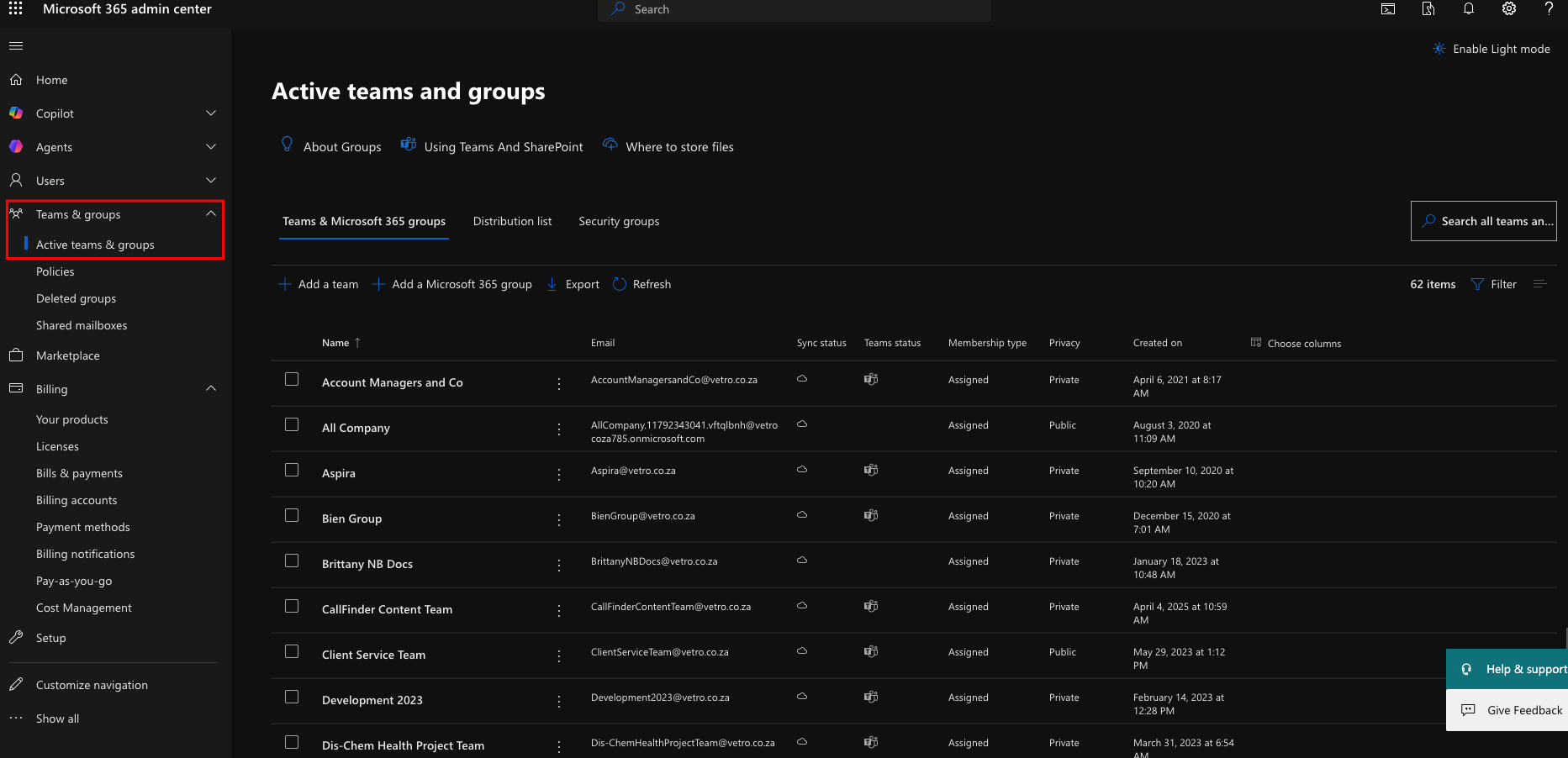
Once you’ve successfully logged in using the instructions provided earlier, it’s important to understand the primary role of the Microsoft 365 Admin Center within our workflow. This platform serves as the central hub for managing users, permissions, and core communication tools across the organisation.
In day-to-day operations, you will mainly use the Admin Center for the following functions: group management, Microsoft SharePoint management, shared mailboxes, internal group structures, and general email administration. These areas are essential for maintaining smooth communication, controlling access, and ensuring that teams can collaborate effectively across projects and departments.
Understanding how these components fit together is key. For example, group management ties directly into permissions across SharePoint and shared resources, while shared mailboxes and email functions are critical for handling client communication and internal coordination. Mismanagement in any of these areas can lead to access issues, missed communications, or workflow disruptions.
To help you get up to speed quickly, a brief tutorial on each of these core functions is outlined below. This is intended as a practical reference to guide you through the most common tasks you’ll be expected to handle.
The home screen looks like this, from this main dashboard you can navigate using the left hand Navigation to select the desired you functions you could possible need to action here
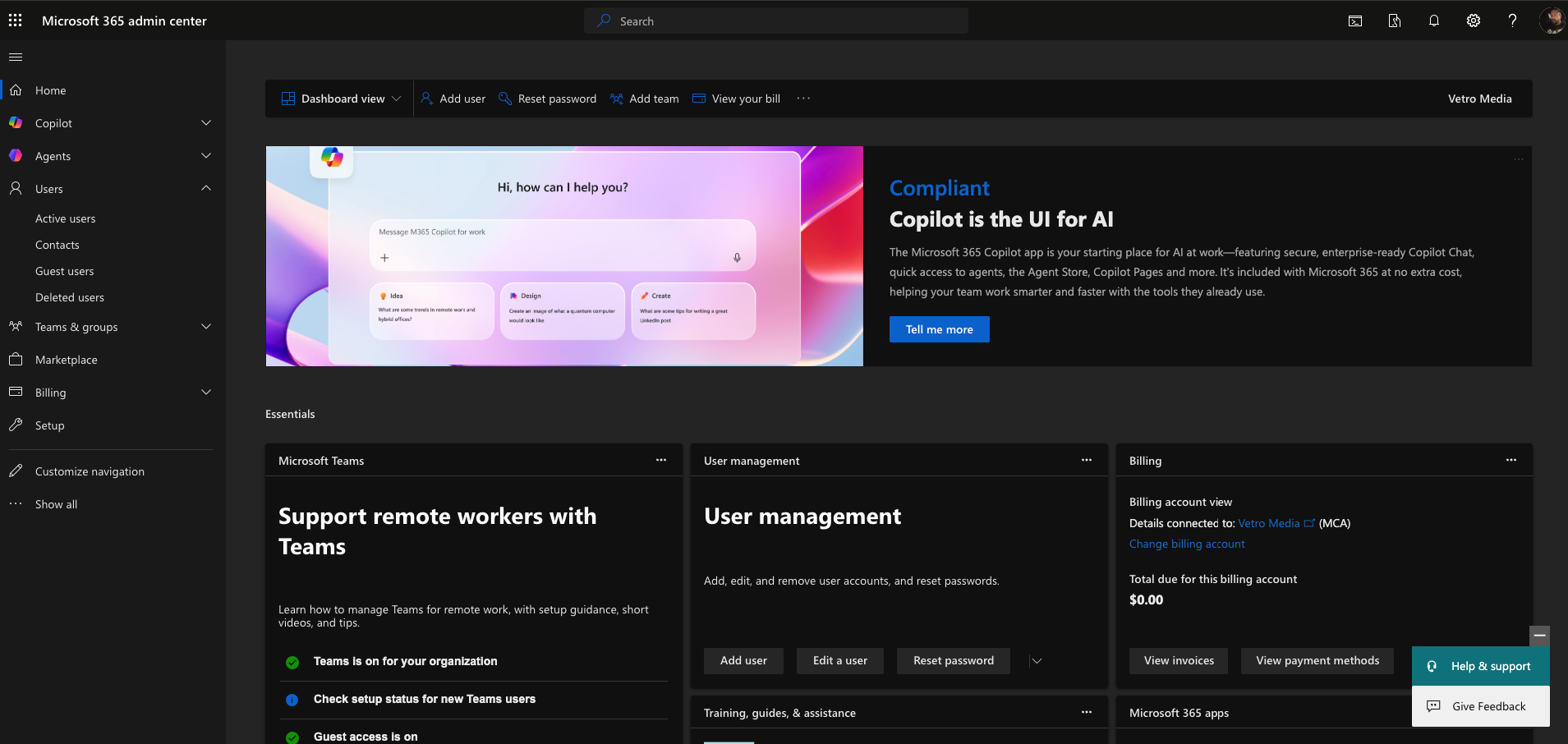
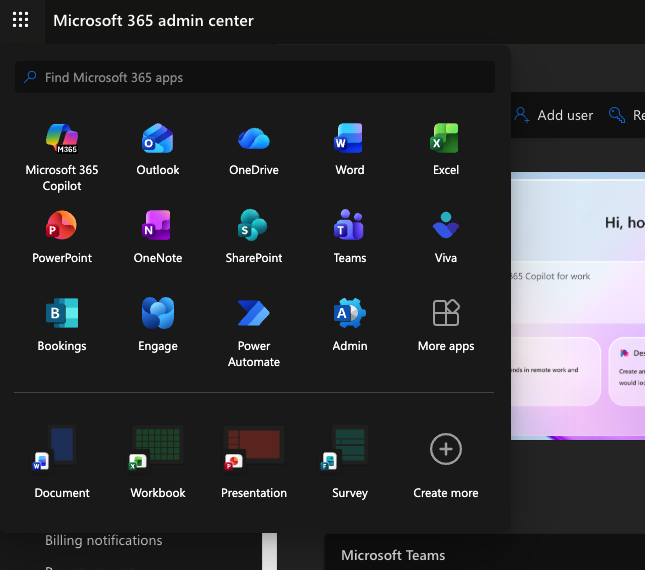
This is done from the Top Left Side opener menu.
One typically does not need to change anything here, it is very rare that such a request maybe arise.
To get here, click on the menu in the top left and the modal will open like this on the right:
Once you have gone inot a specific app, the prompts inside are fairly straighforward depending on what you need to update. There is also support and tutorials available for taks required.
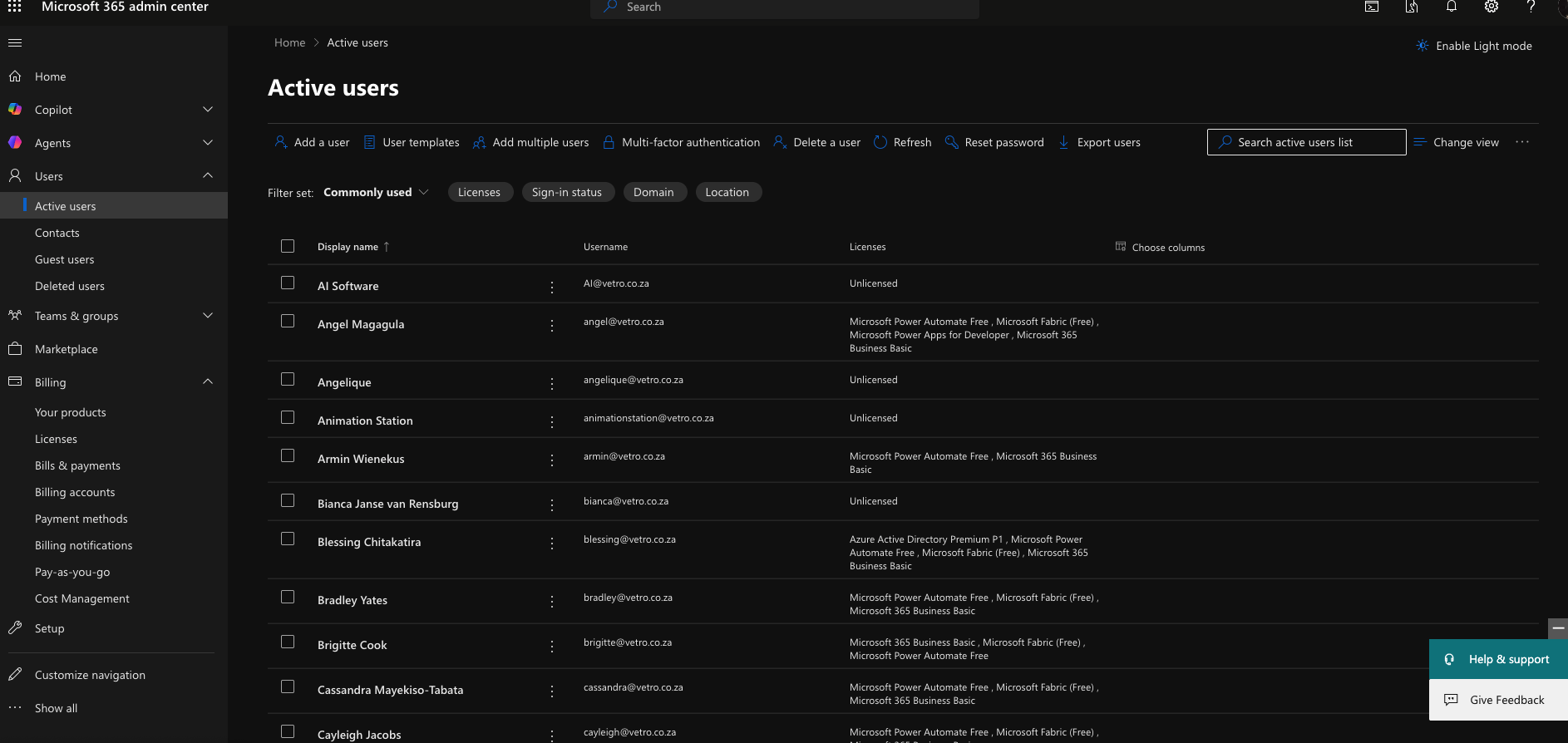
Managing users in the Microsoft 365 Admin Center is essentially about controlling who has access to your organisation’s systems and what they’re allowed to do within them.
At a basic level, it involves creating new user accounts when someone joins, assigning them the correct licenses (e.g. email, Teams, SharePoint access), and setting their permissions so they can access the tools and data relevant to their role. It also includes updating user details when roles change, resetting passwords, and troubleshooting access issues.
Equally important is offboarding—when someone leaves the company, managing users ensures their access is revoked, their data is secured, and any important resources (like emails or files) are reassigned appropriately.
In short, user management is about maintaining secure, structured, and efficient access across all company systems, ensuring the right people have the right level of access at the right time.
In the Microsoft 365 Admin Center, Teams & Groups are used to organise users and control how people collaborate and access shared resources across the business.
Teams (via Microsoft Teams) are built for communication and collaboration. A Team typically represents a department, project, or client, and includes channels for discussions, file sharing, and meetings. When you add users to a Team, they automatically gain access to its conversations, shared files, and any integrated tools linked to that workspace.
Groups, on the other hand, are more about managing access and permissions behind the scenes. A Microsoft 365 Group can control access to shared resources such as email inboxes, calendars, and Microsoft SharePoint sites. They’re often used to streamline permission management—rather than assigning access individually, you assign users to a group, and the group determines what they can access.
In practice, Teams and Groups are closely linked. For example, every Team is backed by a Microsoft 365 Group, meaning membership controls both collaboration (Teams) and access (SharePoint, email, etc.).
Managing Teams & Groups involves creating and organising them properly, adding or removing users, and ensuring permissions are set correctly. Done well, this keeps collaboration structured, avoids access issues, and ensures the right people can work together efficiently without exposing sensitive information unnecessarily.
You can also create and manage shared mailboxes within the Microsoft 365 Admin Center.
Shared mailboxes are used when multiple team members need access to a single email address—such as support@, info@, or accounts@. Instead of logging in separately, users are granted permission to access the mailbox from within their own email accounts (typically via Microsoft Outlook), allowing them to read, send, and respond to emails collaboratively.
Managing shared mailboxes involves creating the mailbox, assigning the appropriate users (with the correct permission levels), and maintaining access over time. It’s also important to ensure that ownership and responsibility are clearly defined, so emails are monitored and responded to promptly.
Used correctly, shared mailboxes help centralise communication, improve response times, and ensure continuity—especially for client-facing or team-based email functions.

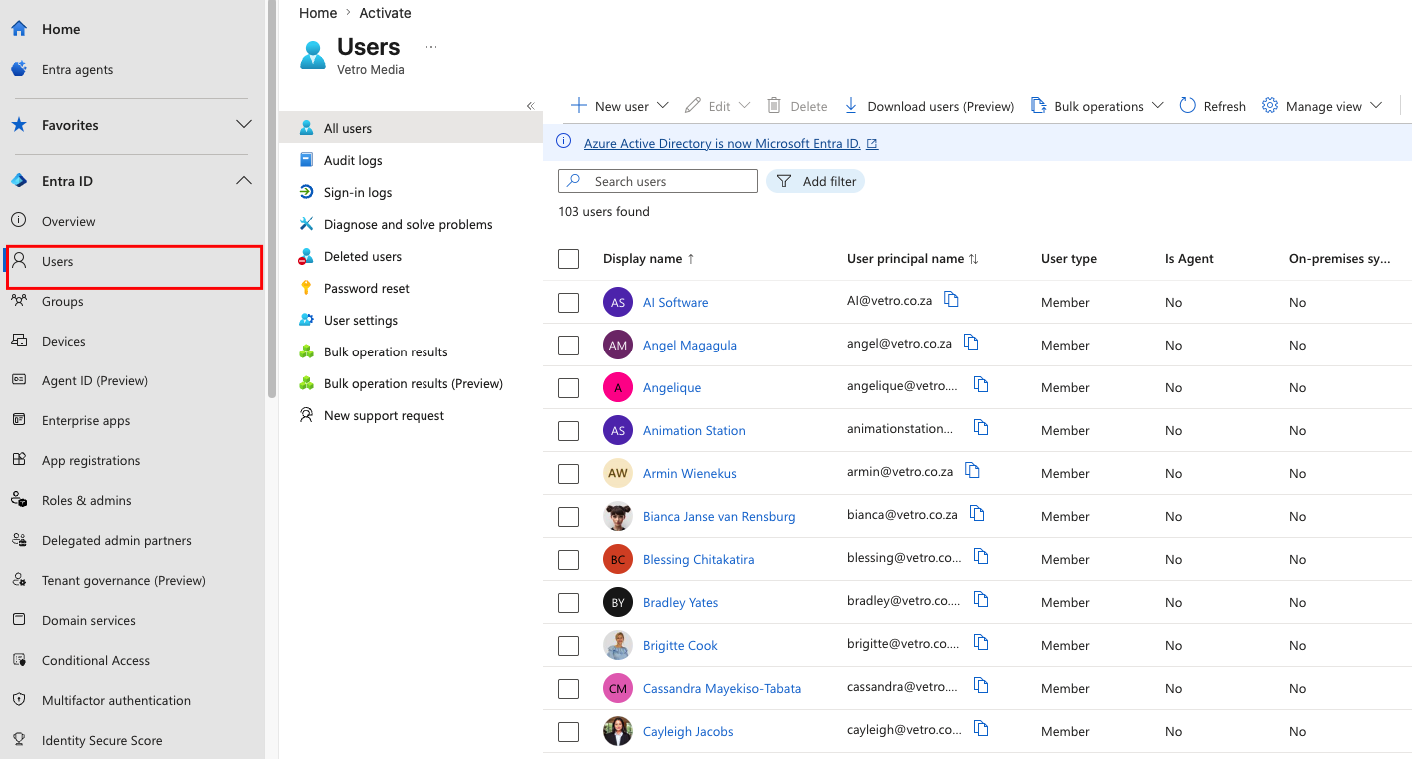
Within Microsoft Entra ID, one of the primary functions is managing users at an identity level—specifically creating new users and assigning the correct licences.
When onboarding a new team member, you’ll use Entra to create their user account, which establishes their identity across all Microsoft services. From there, you assign the appropriate licences (e.g. email, Teams, SharePoint), which determine what tools and features they can access. Without the correct licensing, users won’t be able to fully utilise the systems they need for their role.
This platform also ensures that user access is secure and centrally controlled, tying into permissions, authentication, and overall access management across the organisation. Proper setup here is critical, as it directly impacts a user’s ability to log in, access resources, and function effectively from day one.
To create a new user in Microsoft Entra ID, log in to the admin portal and navigate to Users > All users, then select + New user and choose Create new user. You’ll need to enter basic details such as the user’s name, username, and display name, and set a temporary password (ensuring they are required to change it on first login). Once the account is created, assign the appropriate Microsoft 365 licence so the user can access tools like email, Teams, and SharePoint, and add them to any relevant groups to automatically grant the correct permissions and access to shared resources. Finally, share the login details securely with the user so they can access their account.
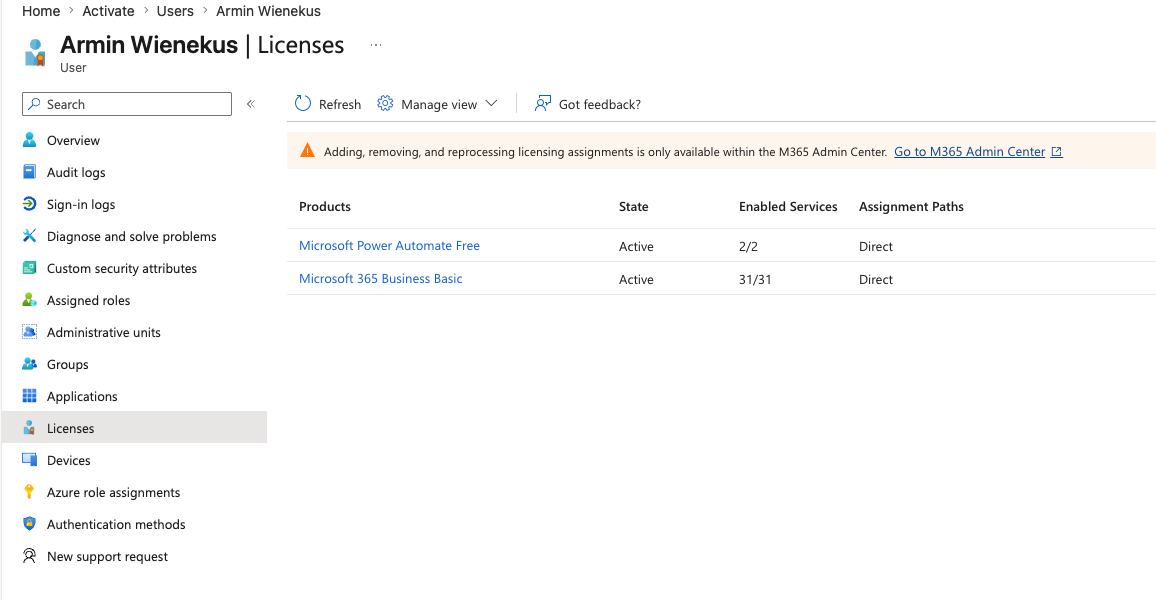
To add and view licences in Microsoft Entra ID, navigate to Users > All users and select the specific user you want to manage. Within the user profile, go to the Licences (or “Licences and apps”) section, where you’ll be able to see all licences currently assigned to that user. To add a licence, click + Assign licence, select the appropriate Microsoft 365 licence from the list, and save your changes. If needed, you can also remove licences from this same area. For a broader overview, you can view all available licences and their usage by going to the Billing > Licences section, which shows how many licences are assigned versus available across the organisation.
This has to be done or the user wont be able to use any MIcrosoft facilities.
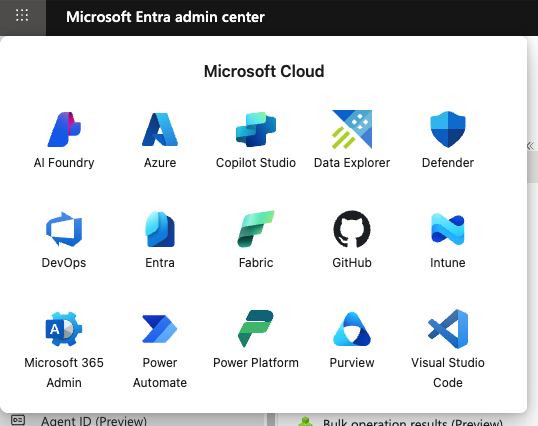
In Microsoft Entra ID, “cloud services” are not listed as a single menu item but are primarily managed under Enterprise Applications. This section contains all cloud-based applications connected to your organisation, including both Microsoft services and third-party tools that integrate via single sign-on (SSO). These applications are used to control access to external and internal platforms, allowing users to log in securely with their company credentials without needing separate usernames and passwords for each service. From here, you can view available applications, assign users or groups, and manage permissions and access settings. In essence, this area is used to centralise and secure how users interact with cloud services, ensuring the right people have access to the right tools while maintaining strong access control and security across the organisation.

Orion is used as a centralised tool for managing multiple WordPress websites from a single dashboard. Instead of logging into each site individually, it allows you to access all connected sites in one place, which significantly improves efficiency when handling day-to-day maintenance.
Its primary functions include providing quick login access to sites, monitoring uptime and downtime, and giving a high-level overview of site health. It also allows you to organise websites by assigning tags or colour labels to specific developers, making it easy to track ownership and responsibility across the team. This helps ensure accountability and clarity when managing multiple client sites.
Overall, Orion WP Manager is used for visibility, organisation, and streamlined access—making it easier to maintain, monitor, and manage a large portfolio of WordPress websites efficiently.
Once you have lohhed in you will get a home page dashboard which will look like this
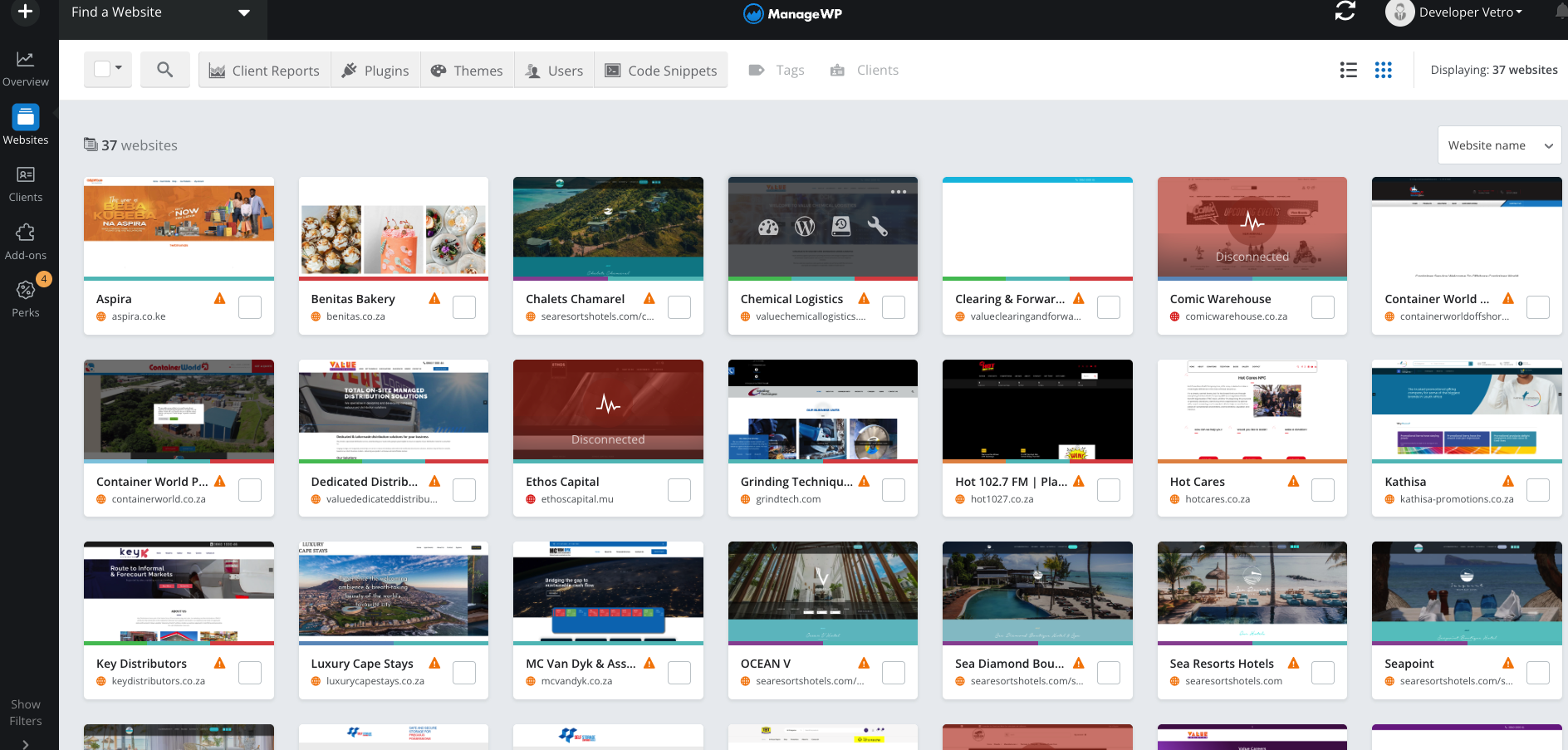
When hovering on these a panel opens up which you will see the following controls - see on the right:
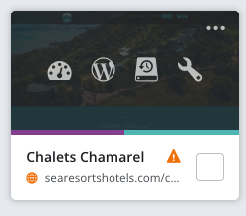
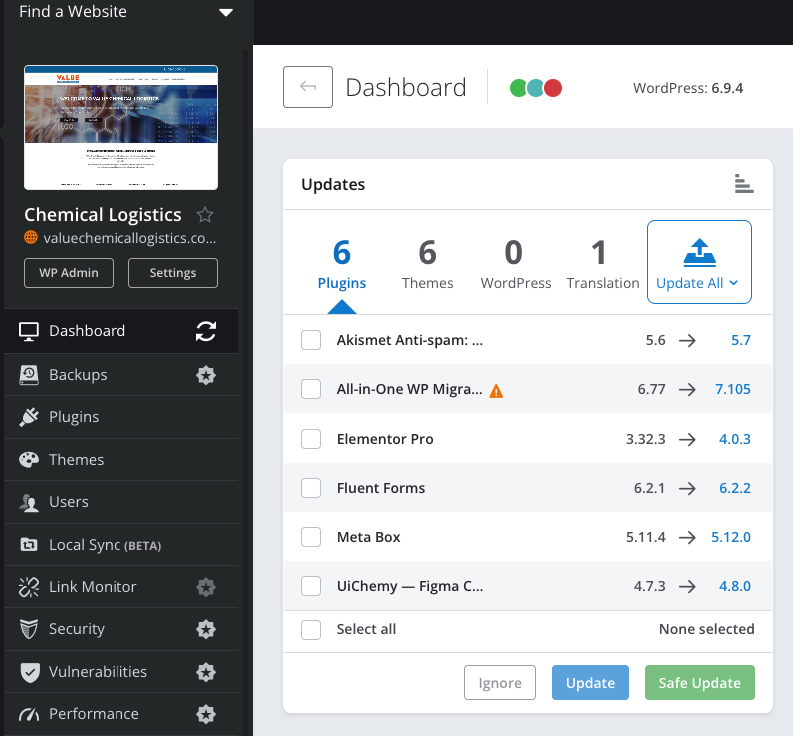
In this section (opened from the speedometer icon) - one can update and monitor plugins - you can do this in Bulk or one by one. It is also used for proof of updated plugins in monthly maintenance - a dev member takes a screenshot at that relevant part in the report.
However, updates should always be handled carefully and ideally after ensuring a recent backup has been taken using approved tools such as Duplicator or similar, to avoid compatibility issues or site downtime. This process helps maintain security, performance, and stability across all client websites.
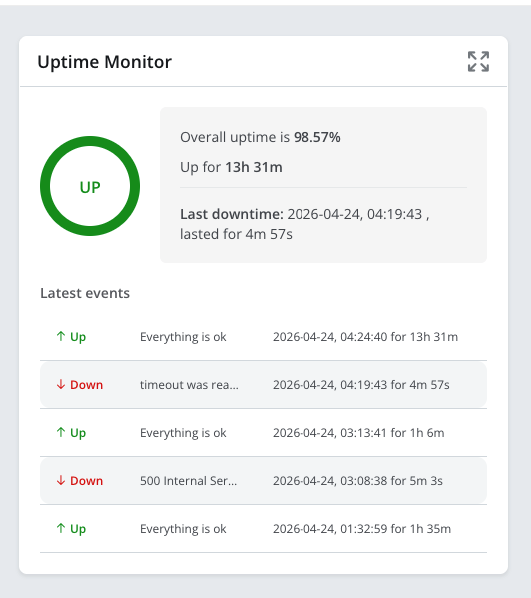
Fairly straight Forward - this section monitors the websites uptime. It has to be activated before you can do this initially. You will see some sites dont have this on - the reason for this is there is a monthly cost in $.
Typically, this works by sending periodic requests (like a ping or HTTP check) to your website. If your site fails to respond correctly, WP Manager can notify you via email or other alerts so you can act quickly. Some setups also log downtime incidents, helping you track reliability over time and spot patterns—like recurring outages due to hosting issues or plugin conflicts.
It’s especially useful if you manage multiple sites. Rather than manually checking each one, uptime monitoring gives you a centralized view of site health, often alongside performance stats and security insights. In short, it helps you catch problems early and maintain a more stable, professional web presence.

iAuditor is the platform we use to audit our monthly maintenance sites and compile structured reports. It plays a key role in ensuring consistency, accountability, and visibility across all maintenance activities.
Below is a brief overview of some of the key elements you’ll need to understand when using the software. The rest of the platform is fairly intuitive, but there are a few important areas to get right—specifically how to set up a schedule, where to view and track scheduled audits once they’re in place, and what steps to take if a schedule has not yet been created for a site.
Getting these basics right ensures that all maintenance checks are carried out on time, properly recorded, and easily accessible for reporting and review purposes.
Firstly, once you’ve logged in to iAuditor, you’ll be taken to the home screen dashboard. This is the central hub of the platform, where everything is managed and accessed. From here, you can view scheduled audits, track completed reports, monitor activity, and navigate to all key features within the system. It essentially acts as your control panel, giving you a clear overview of what needs to be done and where to find it, making it easy to manage and maintain all monthly maintenance audits efficiently.
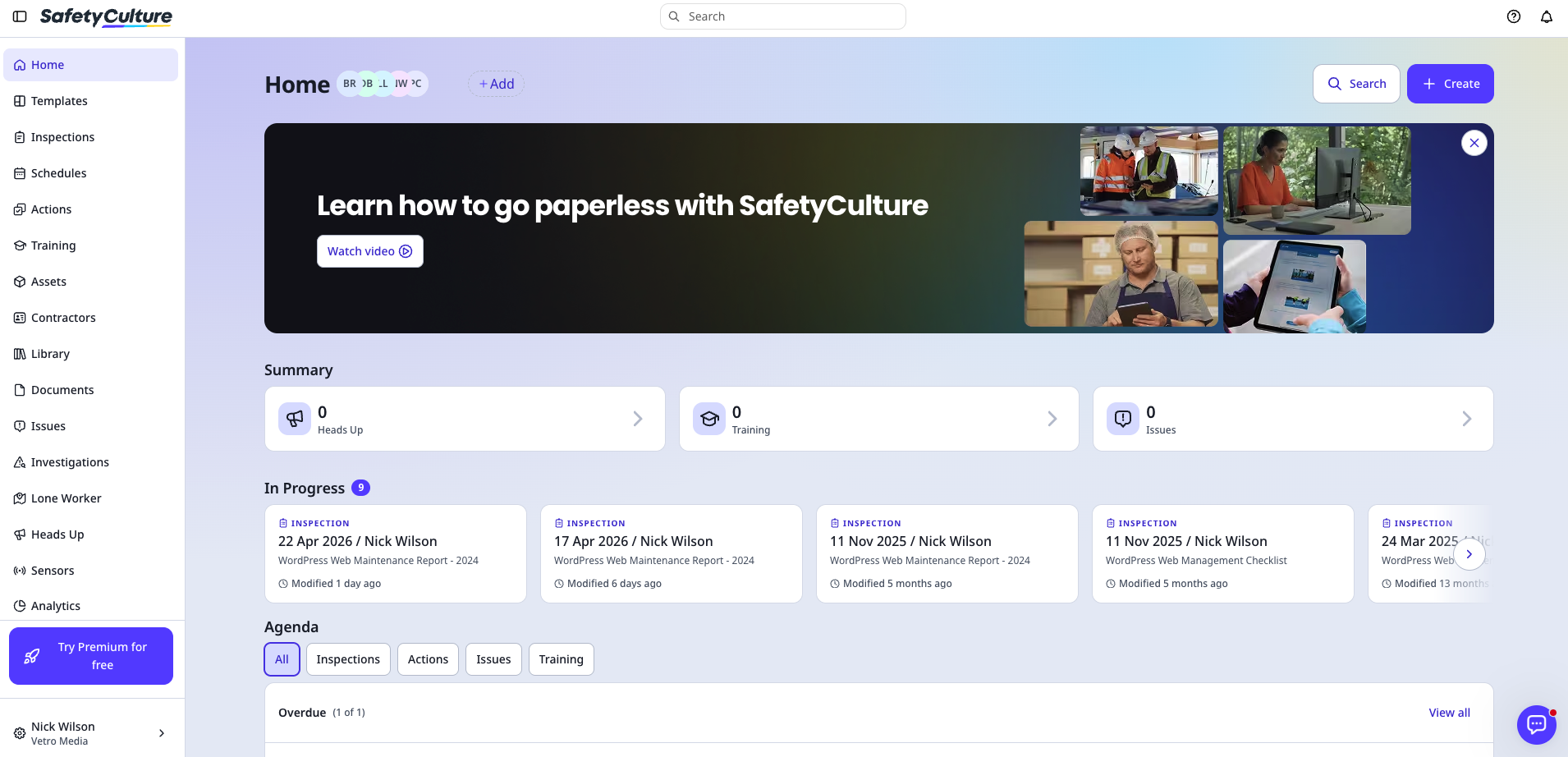
Assuming you have already set up a schedule for a team member (or multiple team members), it will automatically appear in their dashboard within iAuditor, as shown in the example below. This ensures that each person has clear visibility of the audits assigned to them and what needs to be completed.
To begin an audit, simply select the relevant site directly from the dashboard. This will open the audit checklist, where you can proceed through each step by following and completing the prompts provided. It’s important to ensure that all sections are filled out accurately and thoroughly, as this forms the basis of the final report and overall maintenance record for that site.
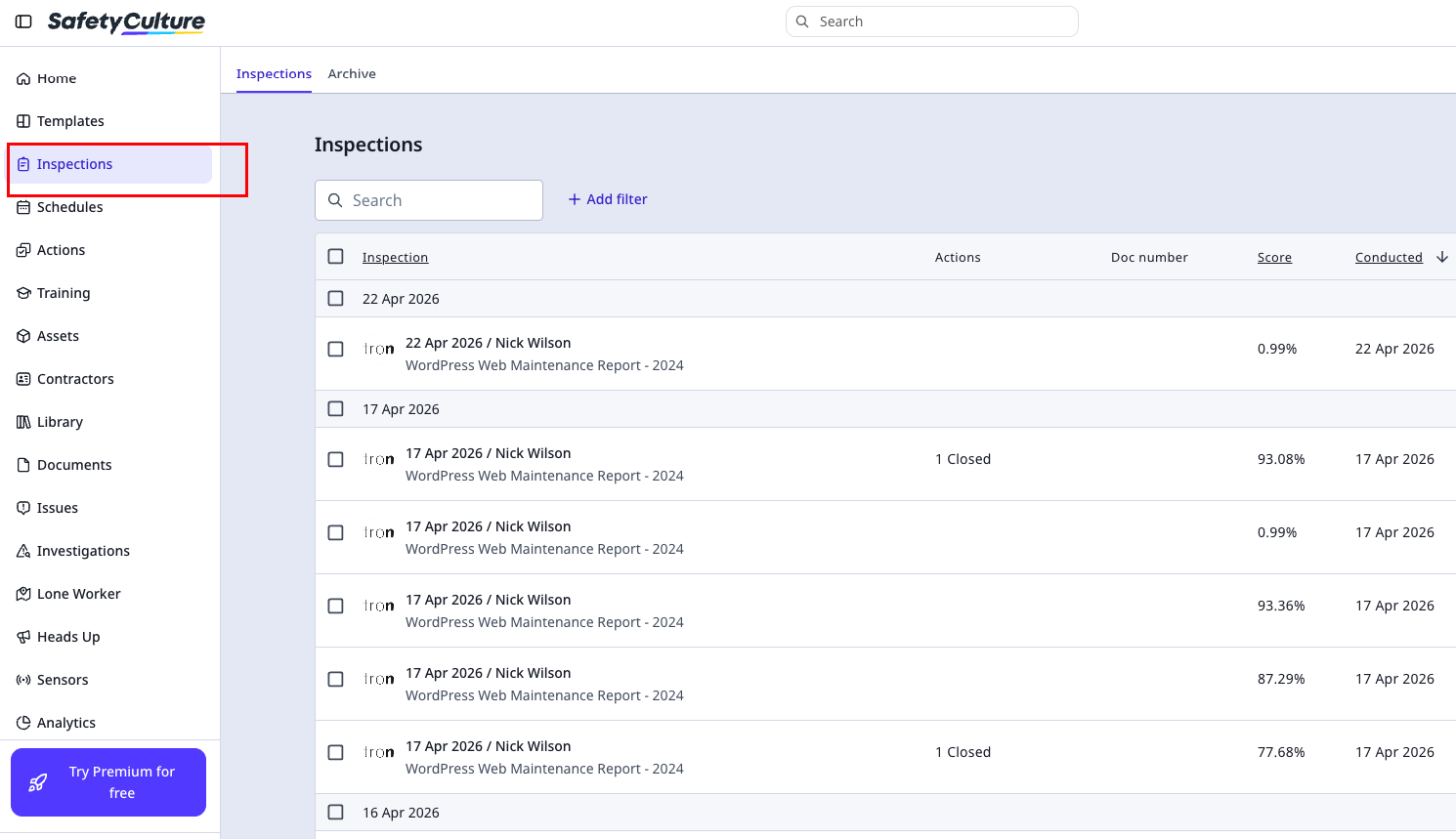
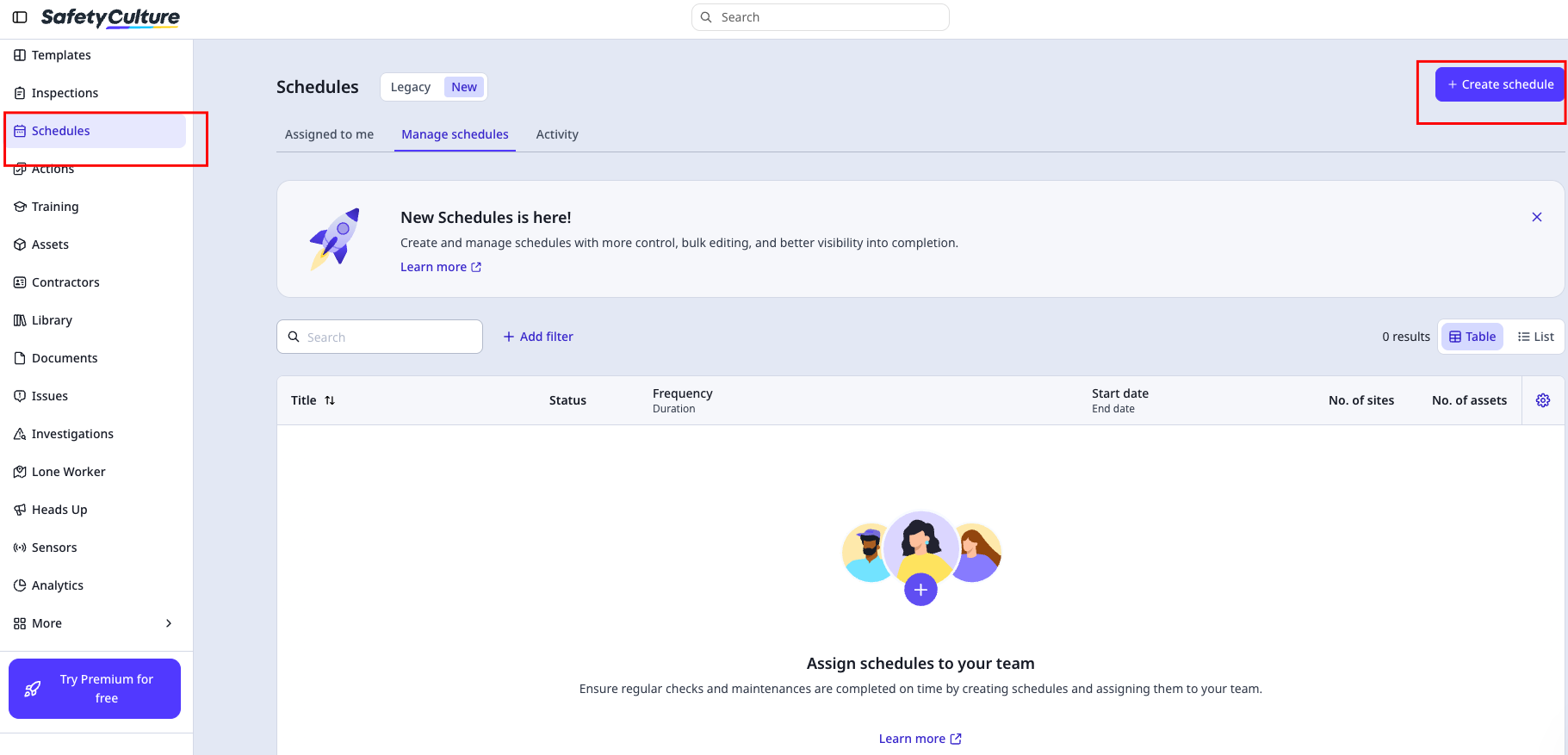
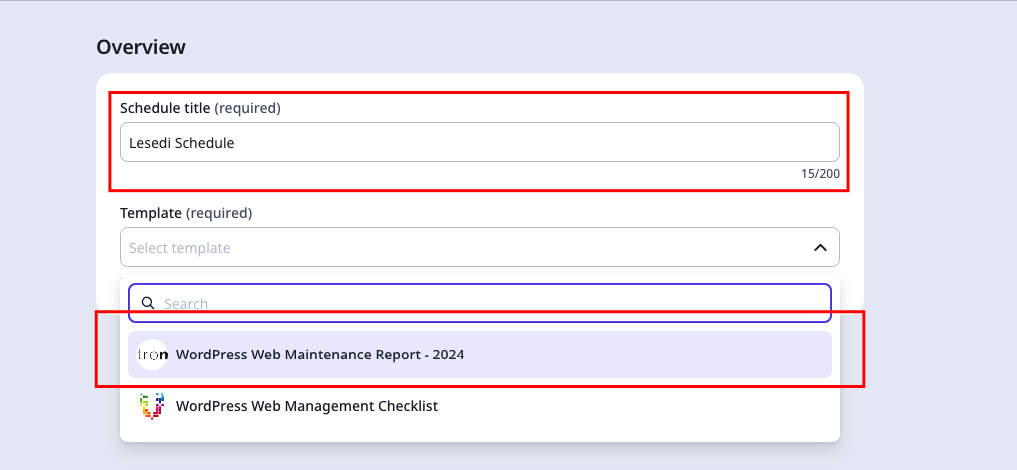
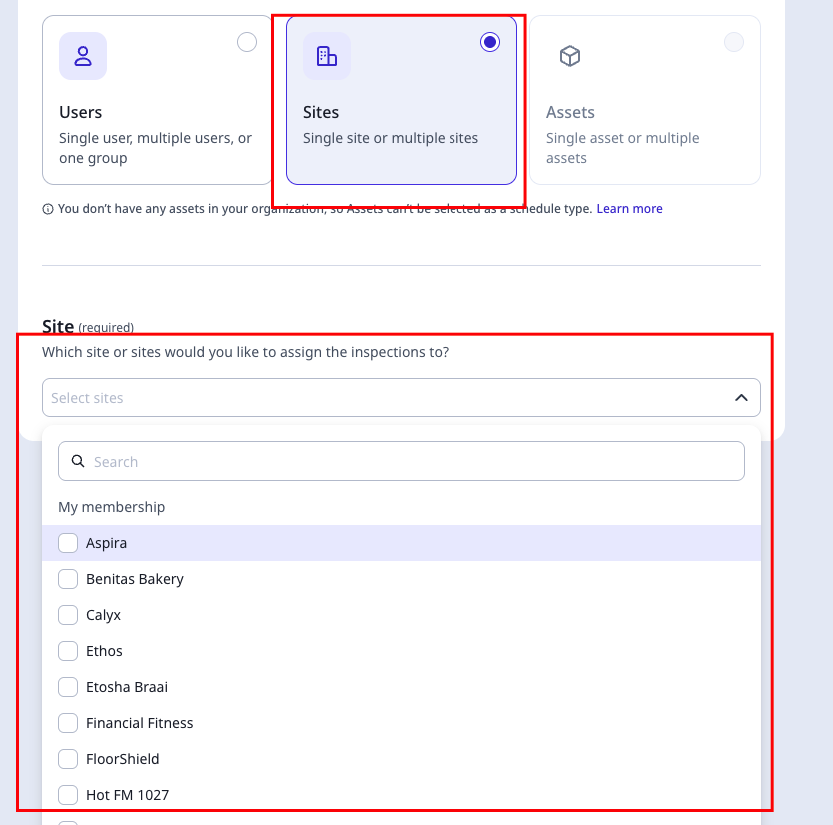
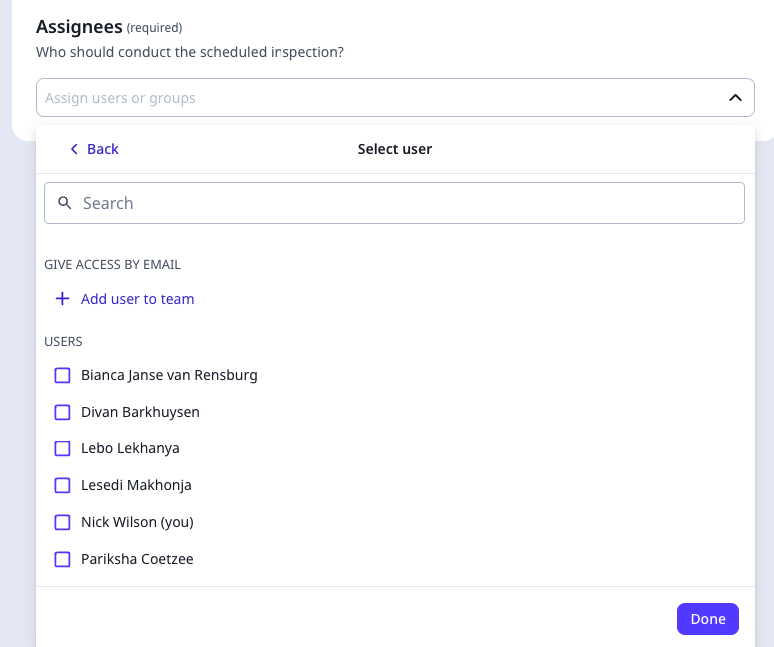
I’ll briefly explain the process using the images on the left as a guide (working from left to right). In iAuditor, start by navigating to Schedule in the left-hand menu, then click on the Create Schedule button. Enter a clear title for the schedule, and make sure you only use the template specified in the screenshot to ensure consistency across all audits.
Next, you’ll be presented with a grid of sites. Select the relevant sites and use the dropdown menu to assign them to the appropriate schedule. Once you’ve selected all required sites, click Next to proceed. From there, assign the schedule (along with its selected sites) to the relevant user.
If a new staff member has joined and does not appear in the user list, you will need to ensure they are set up as a user in the system before you can assign anything to them. If you’re unsure how to do this, reach out to Divan for assistance.
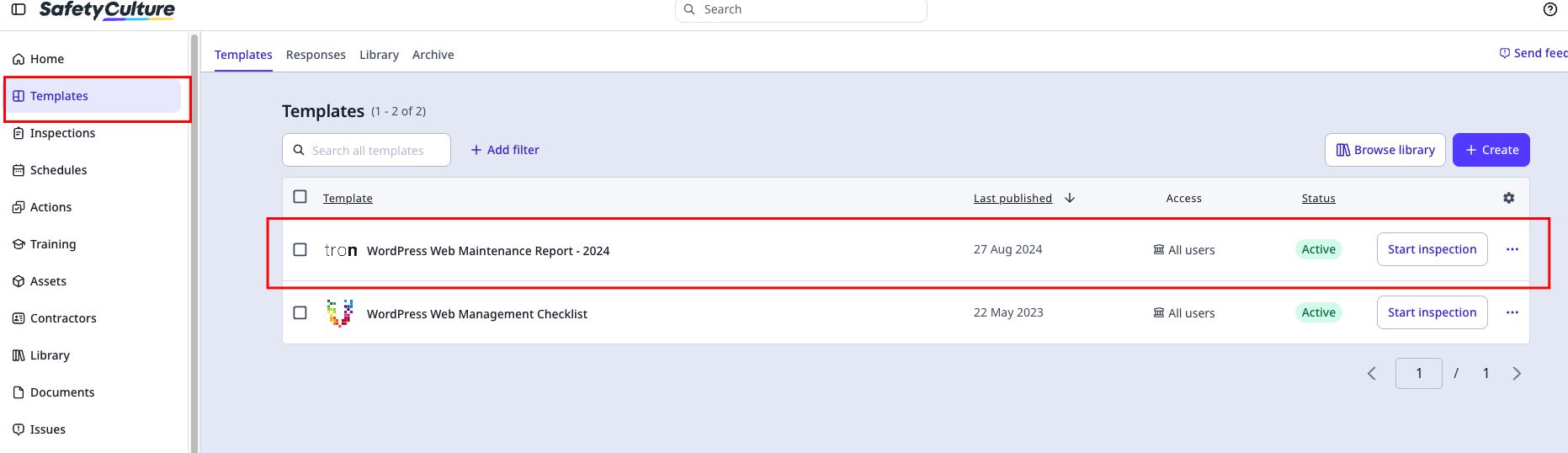
The alternative approach, if a schedule has not been created in iAuditor, is to run the audit directly from a template. This is often the easier option, especially in situations where maintenance clients have been reassigned or workloads have shifted based on team capacity.
To do this, navigate to Templates, select the approved template indicated in the guidelines, and proceed by following the same prompts as you would in a scheduled audit. The process itself remains largely the same, just without the need for a pre-configured schedule.
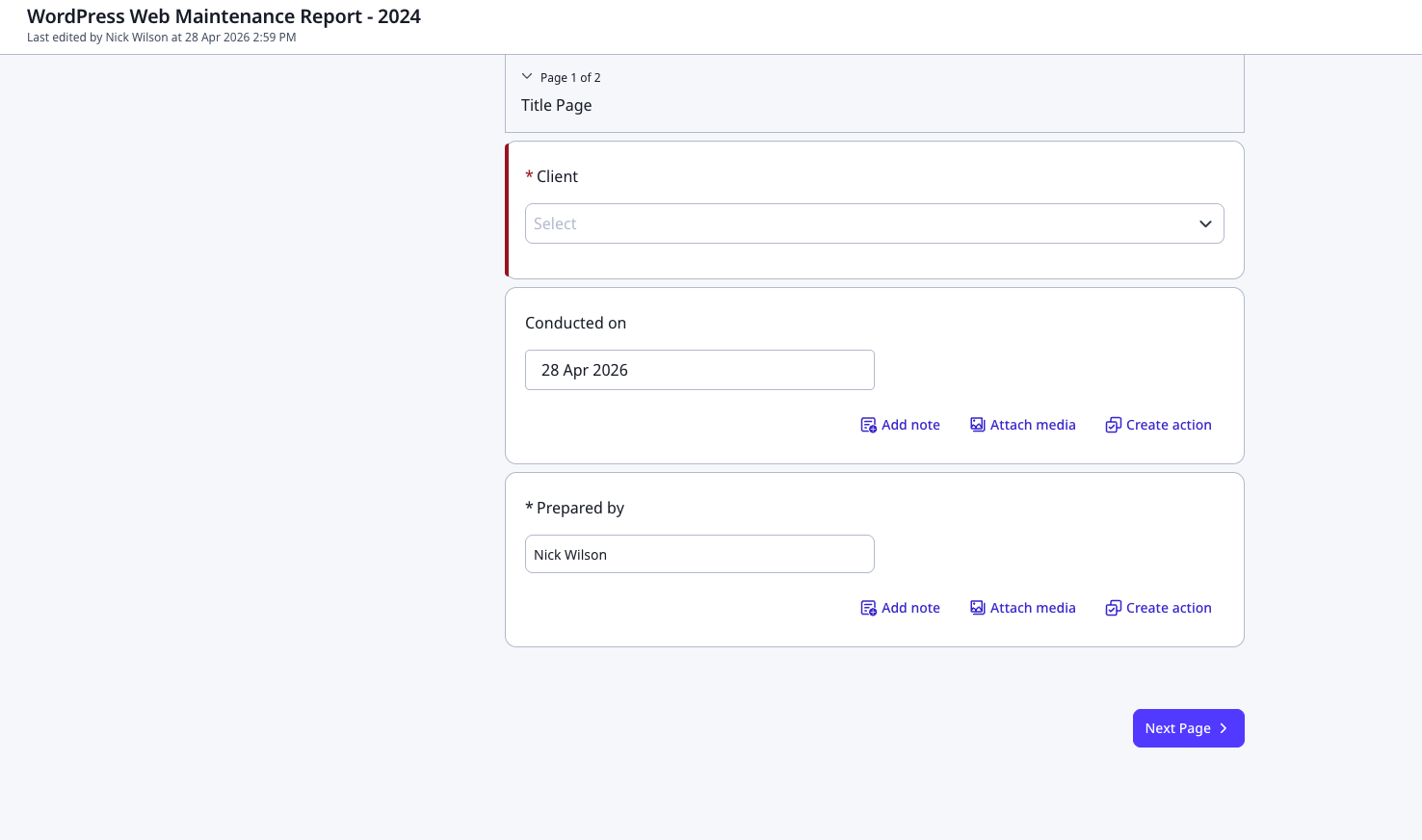
A key point to note is that throughout the audit, you will be required to attach media (such as screenshots). These are not optional—they serve as proof that the required checks and updates have been completed, and are essential for reporting and accountability.
In cases where plugins cannot be updated, you must:
This last step is critical—if an action is not created and assigned (even if it is immediately marked as complete), the report will not be properly generated or accessible once finalised. Ensuring all required steps are followed will prevent issues with report availability and maintain consistency across all maintenance audits.
Once you click on the template it will open like this - see second image.
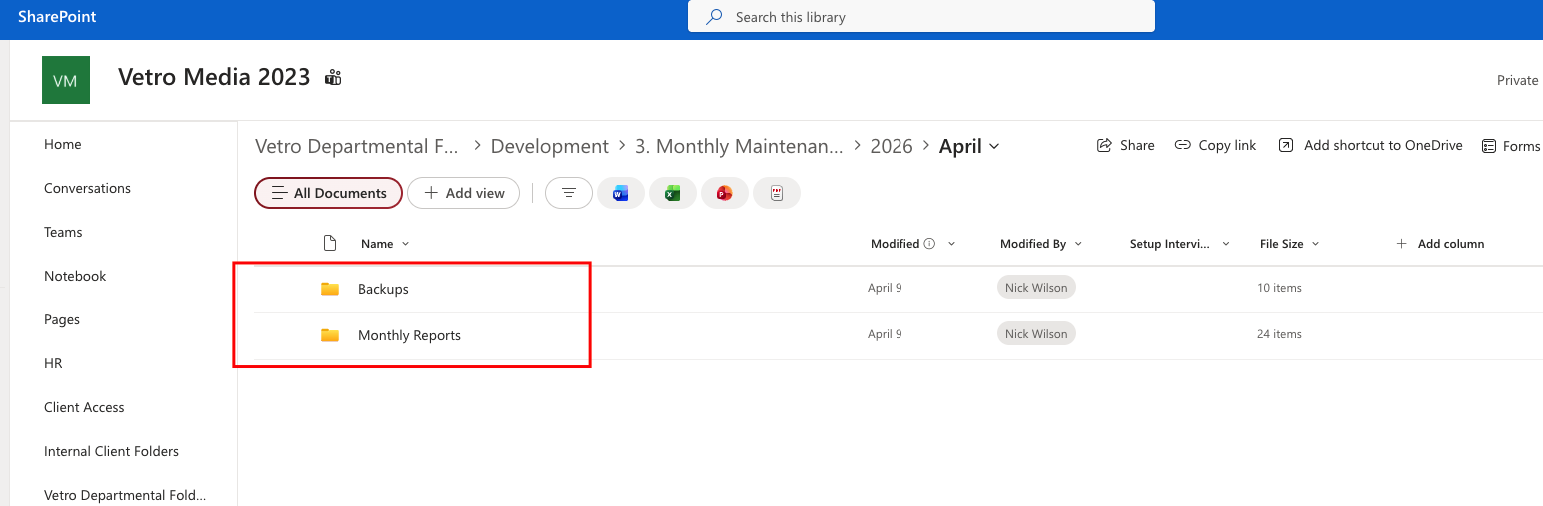
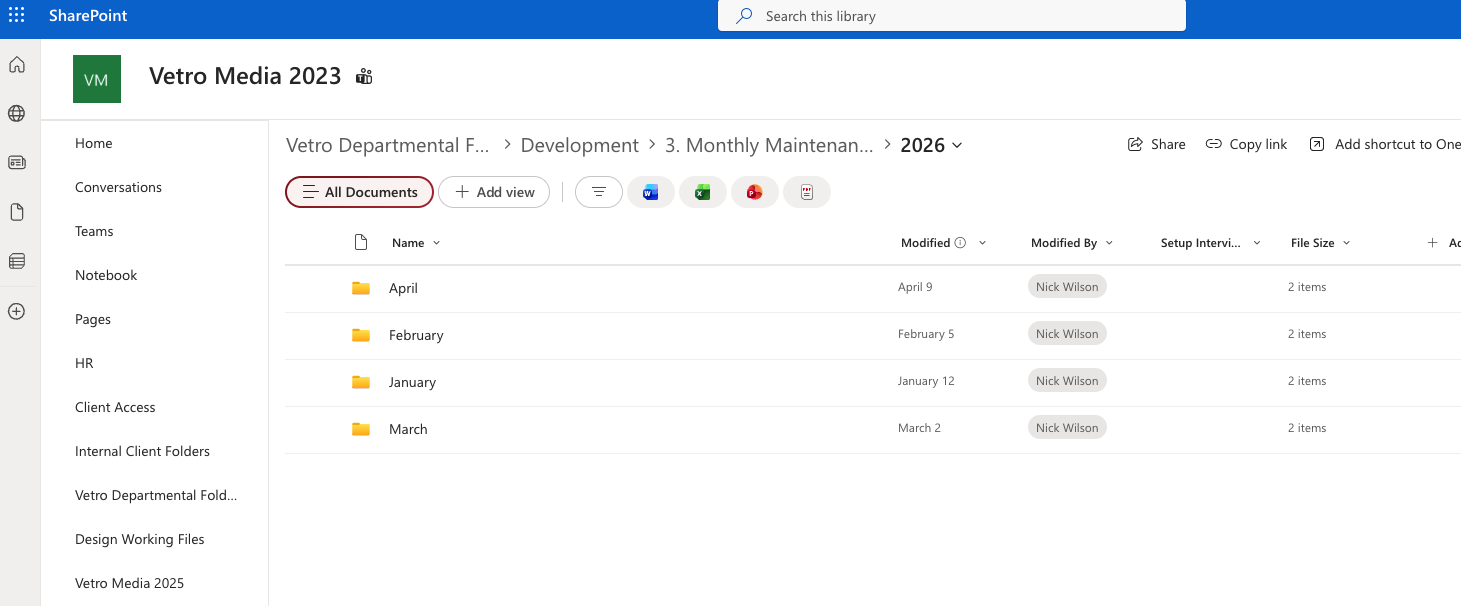
Once you have completed your report in iAuditor, it must be saved to Microsoft SharePoint in the designated Monthly Maintenance folder, as shown in the first image. It’s important to follow the existing folder structure and naming conventions exactly—particularly the date ranges—since the Account Managers (A.M’s) rely on a consistent system and already know where to locate reports based on this structure. Any deviation can cause confusion or delays in client delivery.
Within each month’s folder, you’ll also notice that content is organised into separate sections—typically split between Backups and Monthly Reports (as shown in the second image). Backups are created using tools such as Duplicator or All-in-One WP Migration, while the reports refer to the completed audit documents. Make sure your files are saved in the correct section to maintain clarity, consistency, and ease of access for the wider team.

The standard operational protocol for the development team on Vidro is outlined in a separate document, which you can access by clicking the button below. This document is important and should be reviewed thoroughly, as it also includes key guidelines around email signatures, Microsoft Teams usage, and general email etiquette.
Vidro itself is straightforward to use and serves multiple purposes within the business, including leave management and time tracking. Each section within the platform is clearly labelled, making it easy to navigate and understand your responsibilities.
With specific regard to time tracking, please refer to the tips provided within the document to ensure accuracy and consistency. If you encounter any issues, are unsure about best practices, or need help troubleshooting, don’t hesitate to reach out to Robyn, who will be able to assist with debugging and resolving any challenges.

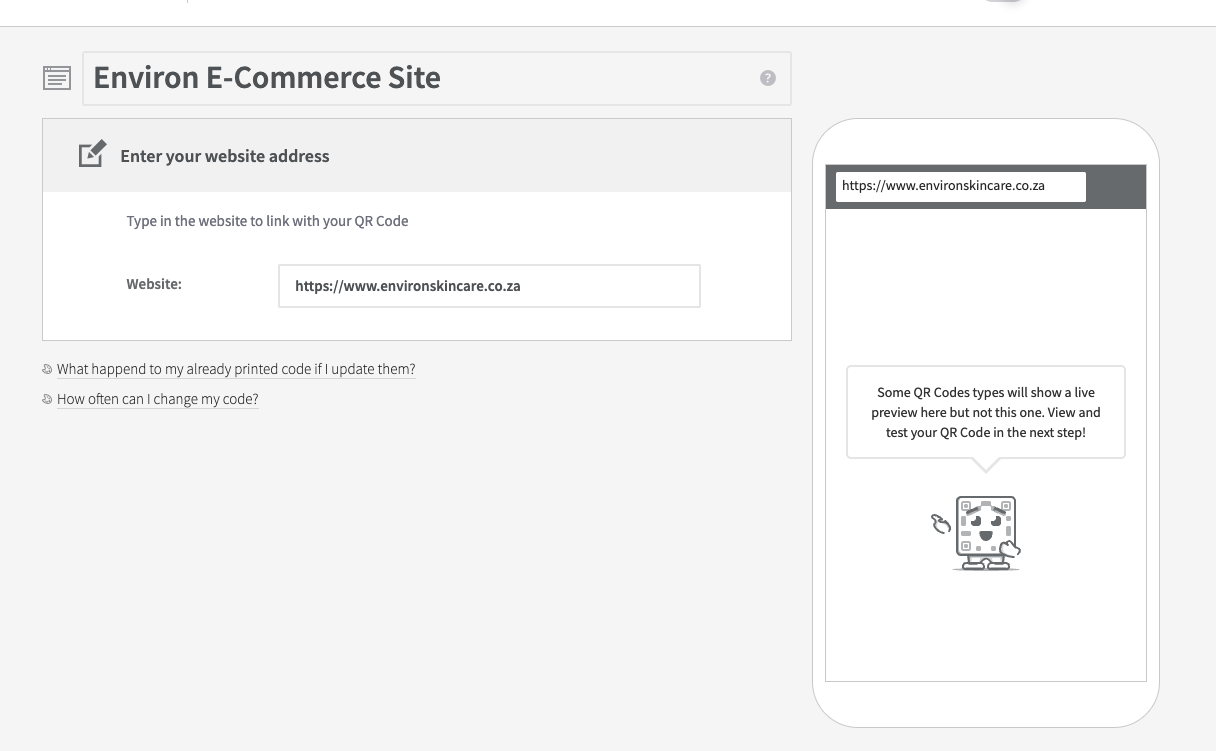
This is a straightforward platform used primarily for mobile marketing campaigns. The core function is to generate a QR code that links to a specific URL—typically tied to a campaign, promotion, or landing page. To set this up, you simply create a new campaign, input all the required information (including the destination URL), and submit it to generate the QR code for use across marketing materials.
The current plan allows for up to 50 active campaigns at a time. If this limit is reached, you may need to review existing campaigns and remove or archive any that are expired or no longer in use before creating new ones. It’s important to manage this actively to avoid hitting capacity when new campaigns are needed.
Occasionally, the design team will also request that campaigns be created on their behalf, so be prepared to assist with generating QR codes as part of broader campaign rollouts.
The edit screen looks like this (second image below) - you access it by clicking on the edit icon when hovering over the desired campaign (see first image below)

Staying aligned with this approach is essential to maintaining control over the overall delivery. It ensures that costs remain predictable, timelines are adhered to, and scope creep is minimised. By keeping each phase and task on track, you create a structured environment where dependencies are managed effectively and potential risks are identified early.
This discipline also plays a key role in meeting stakeholder expectations. Each stakeholder often has different priorities and requirements, and without a clear, consistent process, these can quickly become misaligned. Maintaining focus and accountability at every stage ensures that all requirements are captured, validated, and delivered against agreed objectives.
Ultimately, this level of control and consistency is what enables reliable delivery—balancing quality, budget, and time constraints while ensuring that nothing critical is overlooked.
I have previously created a Wiki for the team to familiarize themselves with in order to make sure they adhere to all departmental policies and procedures - Feel free to add on to this Wiki as of when you see fit.
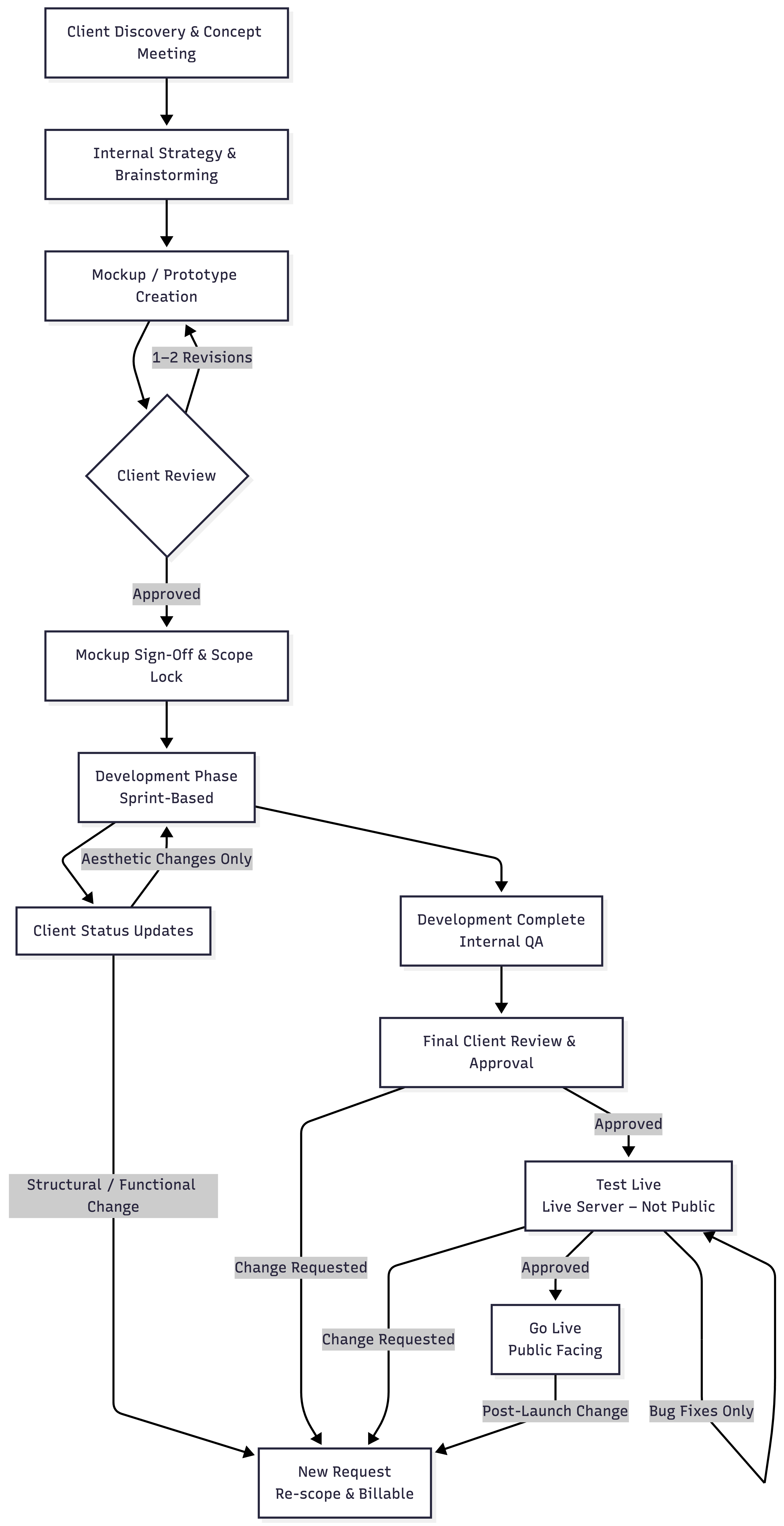
Please click the. button below to see the process in which the dev team receives and actions tasks and communicates and caputures their time.
This also includes email and Teams Etiquette as well as Email signature and various other internal processes.

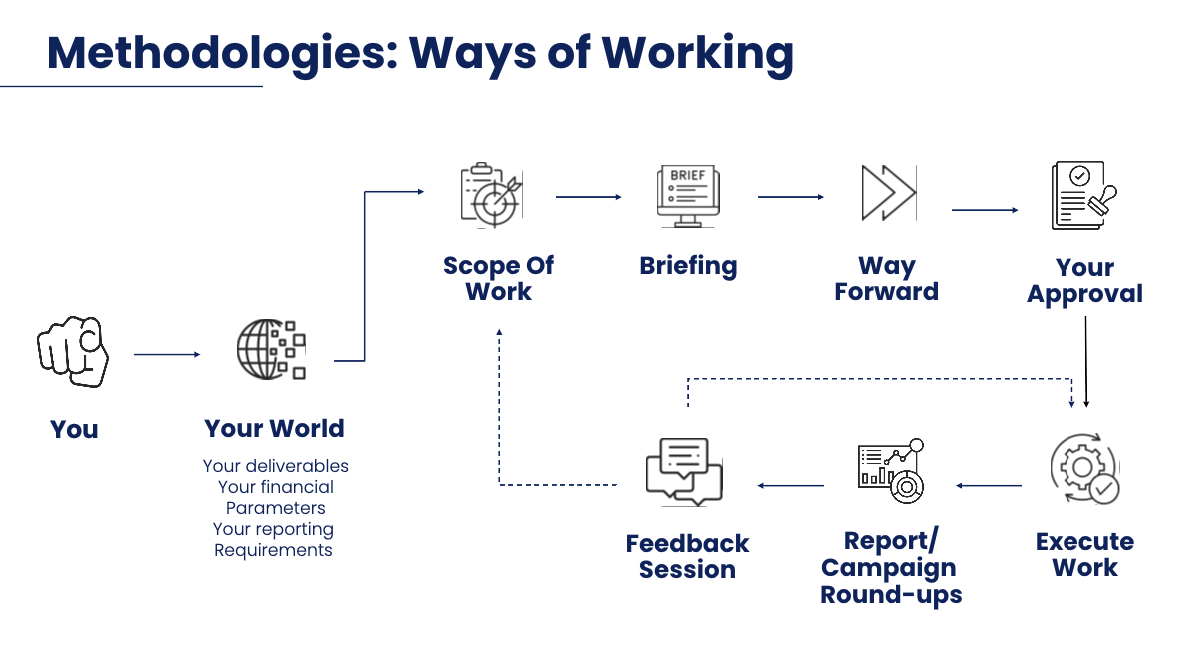
Please strictly adhere to the below process, it is crucial to ensure projected milestones are maintained, and all deliverables completed on deadline always maintaining a clear balance between client best interests and Company and department ROI.
To see a more detailed breakdown of all the above mentioned points expanded on , please click here:
This approach is considered best practice because it brings structure and clarity to every stage of delivery.
Starting with a proper discovery phase ensures everyone is aligned on goals, user needs, and technical requirements before any work begins. That early clarity avoids the common problem of building the wrong thing and cuts down on rework later.
Breaking the project into clear phases—discovery, design, development, and release—keeps things focused and predictable. Each stage has defined outputs and checkpoints, so stakeholders know when to give input and what decisions are needed. This helps prevent scope creep and shifting expectations mid-project.
Formal sign-offs and defined feedback windows keep momentum up. Once a phase is approved, it sets a clear baseline. Changes can still happen, but they’re managed properly rather than slipping in informally and impacting timelines or budgets.
Having structured testing environments also reduces risk. Work is validated before going live, giving both the team and the client confidence in the final product.
Overall, it’s a model that balances collaboration with control—clients stay involved at the right points, while the team can deliver efficiently and with fewer surprises. It’s how experienced agencies and product teams consistently deliver complex projects on time and to a high standard.

As mentioned before , we dont need to delve too deeply into this as it is primarily a custom dev function, not really for wordpress.
Mobile marketing is the use of mobile devices—primarily smartphones—to engage consumers directly, drive participation in campaigns, and ultimately convert interactions into measurable outcomes such as sales, leads, or loyalty. It bridges the gap between physical and digital experiences, allowing brands to connect with customers in real time through channels they already use daily. At a high level, the goal is to create seamless, interactive journeys where a consumer sees a promotion (in-store or online), engages via their phone, and is guided through a structured experience that captures data, delivers value, and encourages repeat interaction.
Our tech stack is built around multiple integrated channels and tools that work together to support these journeys. These include USSD and SMS-based entry points for broad accessibility (especially in lower-data environments), WhatsApp campaigns powered by API integrations for conversational engagement and data capture, and QR codes linked to mobile-optimised landing pages (mobi sites) to connect physical media (like packaging or in-store displays) to digital experiences. We also utilise interactive video to create gamified, two-way content experiences, and AI-powered chatbots within WhatsApp to deliver personalised, dynamic interactions at scale.
On top of this, we develop and manage loyalty programmes and rewards systems, which are central to driving repeat engagement and building long-term customer relationships. These systems handle everything from campaign setup and user journeys to instant reward fulfilment (such as airtime, vouchers, or digital prizes), all while capturing valuable consumer data in a compliant and structured way. Connected packaging further extends this ecosystem by turning physical products into digital touchpoints through QR codes and similar technologies.
Together, this stack enables end-to-end campaign execution—from awareness and engagement to validation, reward, and retention—while providing brands with real-time insights into consumer behaviour and campaign performance.
Below is a wordflow of the Mobile marketing process for ease of reference:
| Website | CMS | Links | Login Information: |
|---|---|---|---|
| Website Name | |||
| vetro Health | Wordpress |
Live Site : https://vetro.co.za/ |
Website Backend: https://vetro.co.za/vmsa-sec25 Note: **Please store your login details and save in a secure location. |